Selling passes and vouchers with the checkout
The problem
Term bookings aren't the only thing an activity business sells. Drop-in classes need class passes ("10 classes, valid 6 months"), parents buy gift vouchers at Christmas, private lessons sell as lesson cards, and some studios sell recordings or documents. Each needs a clear price, maybe a payment plan, a payment, and the credit appearing in the parent's account straight away.
What you'd have to build yourself
Product and price management, options such as pack sizes and payment plans, card and bank payments, consents, receipts, invoices, and linking the purchase to the parent's account so it can be used to book. The Zooza checkout widget sells any product enabled for the checkout in the Zooza app, and the purchase shows up in the parent's profile.
How it fits together
Your pricing page ──"Buy"──▶ /checkout/?product=ID&return_url=https%3A%2F%2F…%2Fparent-zone%2F
                                   │  checkout widget: option → details → payment
                                   ▼
                             Thank-you screen ──"Continue"──▶ return_url (parent zone)
<!-- /checkout/ : one page for all products -->
<div data-zooza-widget="checkout" data-zooza-id="YOUR_API_KEY"></div>
<script async src="https://api.zooza.app/widgets/v1/loader.js"></script>
The product comes from the page URL (product), not from the embed. Without it, the widget shows a list of all products. return_url sets where Continue leads after payment. It must be a full https:// address on the same domain as the checkout or your profile widget, URL-encoded.
Variant A: pricing page with "Buy" buttons
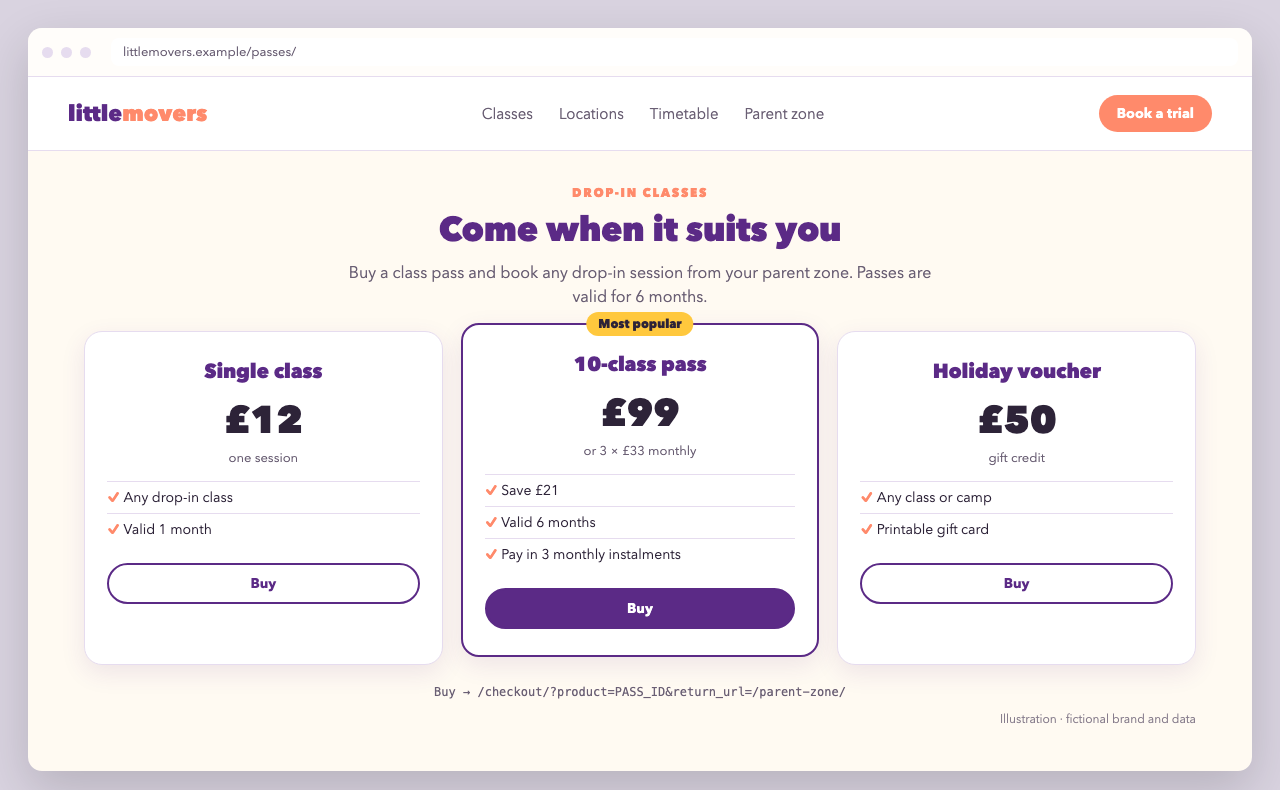
Your marketing page, in your own HTML, with one card per product. Each Buy button is a plain link to the checkout page:
<div class="lm-plans">
  <article class="lm-plan">
    <h3>Single class</h3>
    <p class="lm-price">£12</p>
    <a class="lm-btn" href="/checkout/?product=SINGLE_ID&return_url=https%3A%2F%2Flittlemovers.example%2Fparent-zone%2F">Buy</a>
  </article>
  <article class="lm-plan lm-plan--best">
    <span class="lm-ribbon">Most popular</span>
    <h3>10-class pass</h3>
    <p class="lm-price">£99 <small>or 3 × £33 monthly</small></p>
    <a class="lm-btn lm-btn--solid" href="/checkout/?product=PASS10_ID&return_url=https%3A%2F%2Flittlemovers.example%2Fparent-zone%2F">Buy</a>
  </article>
  <article class="lm-plan">
    <h3>Holiday voucher</h3>
    <p class="lm-price">£50</p>
    <a class="lm-btn" href="/checkout/?product=VOUCHER_ID">Buy</a>
  </article>
</div>
Keep the prices on this page in sync with the products in Zooza. The checkout always charges the price set in Zooza. If the pack offers a payment plan, the checkout lets the parent choose it.
Variant B: product page with the checkout embedded
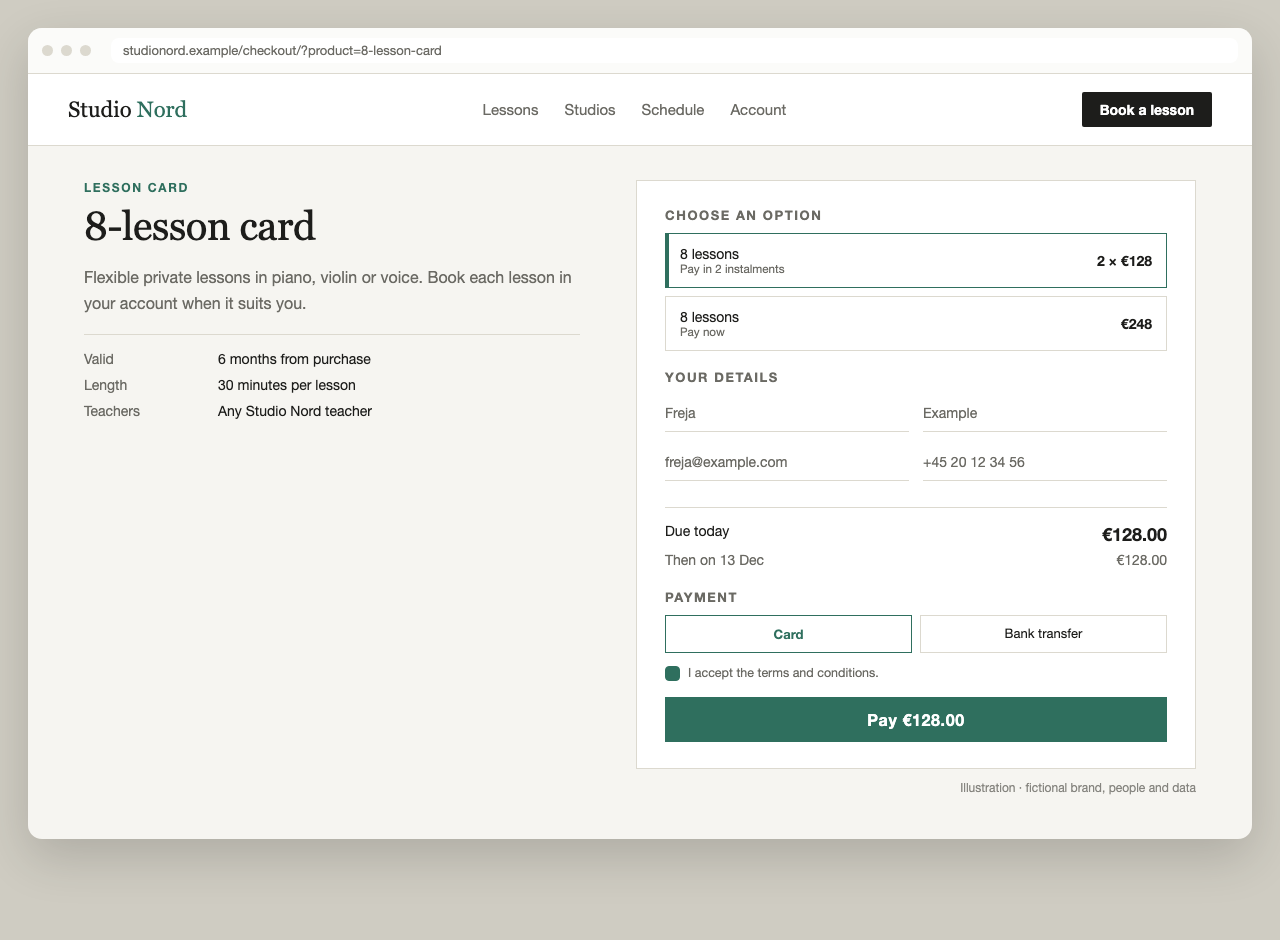
One page per product: the description on the left, the checkout beside it. The checkout follows the page's minimal style: square corners, hairlines and one accent colour.
<section class="nord-product">
  <div class="nord-product__about">
    <h1>8-lesson card</h1>
    <p>Flexible private lessons in piano, violin or voice …</p>
  </div>
  <div data-zooza-widget="checkout" data-zooza-id="YOUR_API_KEY"></div>
</section>
.nord-product { display: grid; grid-template-columns: 1fr minmax(0, 560px); gap: 3.5rem; }
@media (max-width: 900px) { .nord-product { grid-template-columns: 1fr; } }

.nord-product .zooza-checkout-widget {
  --zooza-font-family: inherit;
  --zooza-accent: #2f6f5e;
  --zooza-border-color: #dcd9cf;
  --zooza-radius: 0;
  --zooza-gap: 1.1em;
  --zooza-max-width: 100%;
  background: #fff;
  border: 1px solid #dcd9cf;
  padding: 1.75rem;
}
.nord-product .zooza-checkout-heading {
  font-size: .8rem;
  letter-spacing: .12em;
  text-transform: uppercase;
  color: #6b6a64;
}
.nord-product .zooza-checkout-button__primary {
  width: 100%;
  background: #2f6f5e;
  border-color: #2f6f5e;
  color: #fff;
}
/* Product options and payment methods still use older class names */
.nord-product .zooza-checkout-widget .zooza_service_option {
  border-radius: 0;
}
Link this page with ?product=… already in the URL, for example from your menu, so the right product is preselected.
Variant C: branded thank-you screen
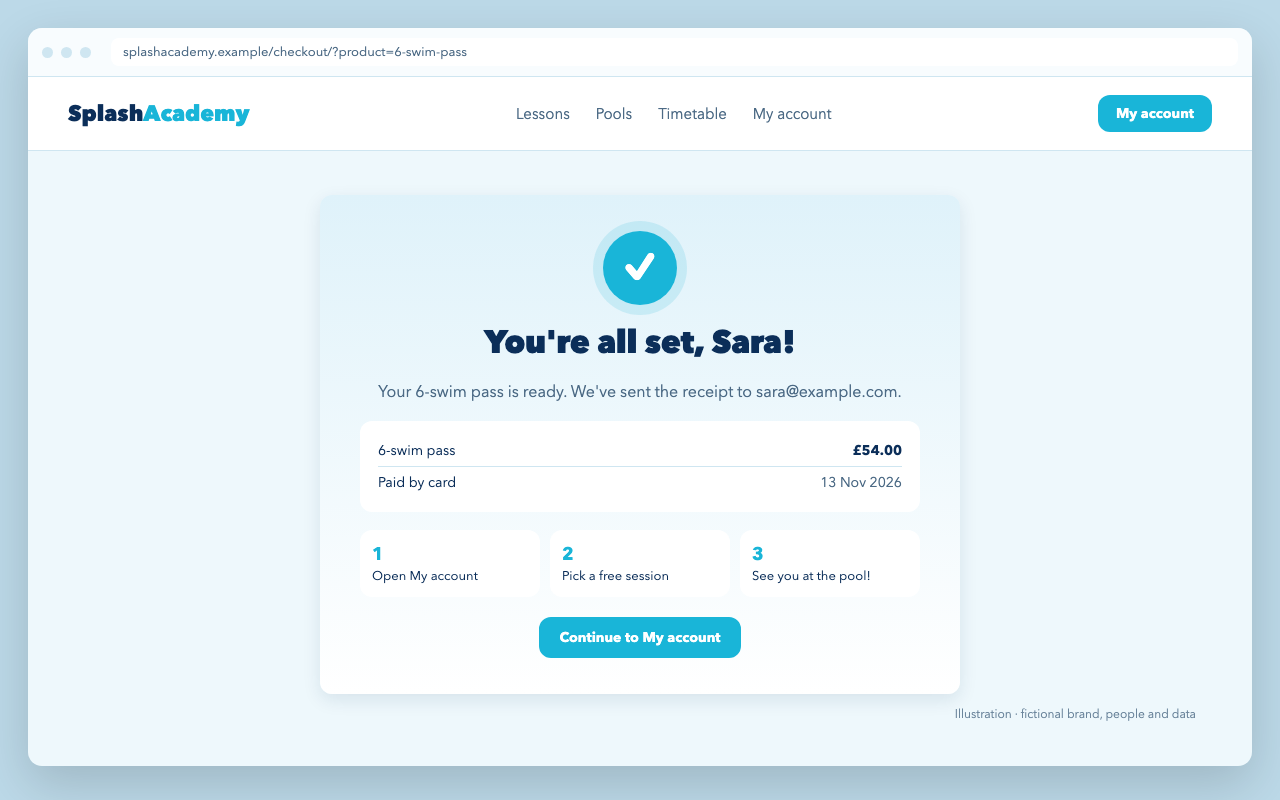
The moment after payment is the best time to tell parents what happens next. The widget root carries data-status="thank_you" on that screen, so you can restyle it into a celebration:
.splash-checkout .zooza-checkout-widget {
  --zooza-accent: #19b5d8;
  --zooza-border-color: #cfe6f1;
  --zooza-radius: 12px;
}
.splash-checkout .zooza-checkout-widget[data-status='thank_you'] {
  padding: 2.5rem 2rem;
  border-radius: 16px;
  background: linear-gradient(180deg, #dff2fa, #ffffff);
  text-align: center;
}
.splash-checkout .zooza-checkout-widget[data-status='thank_you'] .zooza-checkout-button__primary {
  background: #19b5d8;
  border-color: #19b5d8;
  color: #fff;
  border-radius: 12px;
}
Put your own next steps ("Open My account → pick a free session → see you at the pool") around the widget on the page, and show them only after payment:
.splash-next-steps { display: none; }
.splash-checkout:has(.zooza-checkout-widget[data-status='thank_you']) .splash-next-steps { display: grid; }
Good to know
- The checkout has no coupon field. Use discounts set up in Zooza, or sell vouchers as products.
- Buyers enter email, first name, last name and phone. A free product asks only for the email.
- Payment methods (card, online bank transfer, cash) depend on what the product allows. A single available method is preselected.
- Each step has its own
data-status(loading,listing,data,payment,thank_you,error) for step-specific styling. See Styling.